Email Security
📧 Email Security: How to Secure Gmail, Outlook & Yahoo (2025 Guide)
Email is the center of your digital life — and the number one target for cybercriminals.
If an attacker gains access to your email, they can:
- Reset your passwords
- Access bank accounts
- Hijack social media
- Read sensitive messages
- Steal cloud backups
- Commit identity theft
- Take over your entire digital identity
This guide explains how to fully secure your email accounts, prevent takeovers, detect phishing, and protect your private information.
Before you begin, review foundational account protection habits:
👉 Prevent Account Takeovers
🔍 Why Email Is the #1 Target for Hackers
Email accounts contain:
- Password reset links
- Account recovery controls
- Personal information
- Invoices and financial details
- Photo backups
- Business communications
- Identity documents
- Login alerts
- Cloud-sync data
Once a criminal controls your email, they can control everything else.
🛡️ Step 1: Enable Multi-Factor Authentication (MFA)
MFA is the single most effective way to protect email.
Enable MFA for:
- Gmail → Google Account
- Outlook → Microsoft Account
- Yahoo Mail → Yahoo Account
Use:
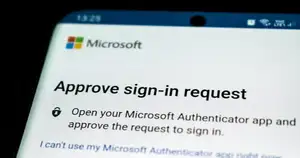
- Authenticator apps (best)
- Hardware security keys (highest security)
- Built-in app prompts
Avoid SMS codes when possible.
Guide:
👉 Multi-Factor Authentication
🔐 Step 2: Use a Strong, Unique Email Password
Your email password should be the strongest password you have.
Requirements:
- Minimum 14+ characters
- Use a password manager
- Never reuse this password
- Use a passphrase or random generator
Learn how to build strong passwords:
👉 Strong Passwords
🧩 Step 3: Secure Your Account Recovery Settings
Attackers often bypass password security by abusing:
- Recovery email
- Recovery phone number
- Security questions
Review and update:
- Ensure recovery email belongs to YOU
- Ensure recovery phone is correct
- Remove old phone numbers
- Remove old backup addresses
- Disable insecure security questions
- Avoid questions with public answers (birthday, pet name, city)
This is a critical step most users ignore.
🧱 Step 4: Check Active Devices & Sessions
Cybercriminals often stay hidden inside compromised accounts.
Check:
- Active sessions
- Connected devices
- Approved browsers
- Login locations
- App passwords
Remove anything unfamiliar immediately.
🌐 Step 5: Enable Advanced Protection Features
✳ Gmail
Enable:
- Enhanced Safe Browsing
- Security Checkup
- Less secure app access → OFF
- Suspicious login alerts
- Password Checkup
- App access review
✳ Outlook
Enable:
- Advanced Outlook security
- Suspicious activity alerts
- Connected apps review
- Account recovery code
✳ Yahoo
Enable:
- Account Key
- App Passwords (only if absolutely required)
- Recent activity checks
📨 Step 6: Identify Phishing Emails Like a Professional
Most email attacks happen through phishing.
Learn the fundamentals here:
👉 Phishing Attacks
Key warning signs:
- Urgent messages
- Threats (“your account will be closed”)
- Unusual attachments
- Strange senders
- Misspelled domains
- Unexpected invoices
- Requests for login codes
- Emails asking you to change a password
- Messages asking you to switch to WhatsApp/Telegram
Always verify the website before logging in:
👉 Verify Website Legitimacy
🔍 Step 7: Protect Your Email From Browser-Based Attacks
Email security also depends on browser security.
Review:
👉 Browser Security
Key protections include:
- Use trusted browsers only
- Disable unsafe extensions
- Keep browser updated
- Enable HTTPS-only mode
- Clear cookies periodically
- Use anti-tracking protections
🧪 Step 8: Avoid Using Email for Sensitive Storage
Avoid keeping:
- Passwords
- ID documents
- Bank data
- Confidential business info
- Private attachments
- File backups
inside your inbox.
Email is not a secure storage platform.
If storing sensitive files, use strong cloud practices:
👉 Cloud Security
🛑 Step 9: Never Share Verification Codes
Attackers often say:
- “I sent you a code — please read it to me.”
- “This is a verification process.”
- “We need this to confirm your identity.”
Your verification codes grant total account access.
Never share them.
🧲 Step 10: Use a Password Manager for Better Email Security
A password manager ensures:
- Unique password
- Strong master password
- Secure storage
- No reused logins
- Safe autofill
- Protection from phishing
🛡️ Step 11: Protect Your Email on Mobile Devices
Mobile email is the most common place people get hacked.
Checklist:
- Use official apps only
- Disable unknown app installations
- Keep iOS/Android updated
- Use device passcodes
- Use biometrics
- Do not install shady apps
- Do not root/jailbreak device
- Disable risky permissions
☁️ Step 12: Secure Your Email Backups & Cloud Sync
Email accounts sometimes sync:
- Contacts
- Photos
- Calendars
- Messages
- File attachments
Strong cloud security is essential:
👉 Cloud Security
🚨 Step 13: What to Do If Your Email Is Compromised
1️⃣ Change your password immediately
Do it from a clean device.
2️⃣ Enable MFA
If not already active.
3️⃣ Check devices and activity
Remove unknown devices.
4️⃣ Review filters & forwarding rules
Attackers may set up:
- Auto-forwarding
- Hidden rules
- Junk folder rerouting
5️⃣ Check recovery options
Ensure hacker didn’t change the recovery phone or email.
6️⃣ Check for unauthorized app access
Remove suspicious connections.
7️⃣ Notify your contacts
If phishing emails were sent.
8️⃣ Scan your device
9️⃣ Reset passwords on critical accounts
Bank
Cloud
Social media
Work accounts
📚 Summary
Your email account is the core of your digital identity — and the primary target for attackers.
By enabling MFA, using strong passwords, securing recovery details, checking device activity, identifying phishing attempts, and protecting your browser, you dramatically reduce the risk of compromise.
To improve your overall digital security: