Cloud Security
☁️ Cloud Security: How to Safely Use Google Drive, iCloud, OneDrive & Dropbox (2025 Guide)
Cloud storage is now part of everyday life.
We use it to store:
- Photos
- Documents
- Password backups
- Financial files
- Work materials
- Personal notes
But cloud accounts are also among the top targets for hackers, since gaining access can reveal your entire digital life.
This guide teaches you how to secure popular cloud services and prevent account takeovers, data leaks, and privacy exposure.
Before you begin, review strong account protection basics:
👉 Prevent Account Takeovers
🔍 Why Cloud Security Matters
Your cloud account contains highly sensitive information, including:
- Personal documents
- Passport photos
- Financial statements
- Work data
- Password backups
- Device backups
- Location history
- Photos and videos
A compromised cloud account lets attackers:
- Access your files
- Reset your other accounts
- Steal personal information
- Perform identity theft
- Deploy ransomware
- Upload malware
- Lock you out of your devices
Cloud security is part of overall digital privacy:
👉 Privacy & Identity Protection
🛡️ Step 1: Enable Multi-Factor Authentication (MFA)
MFA is the strongest defense for cloud accounts.
Enable MFA on:
- Google Drive → Google Account
- iCloud → Apple ID
- OneDrive → Microsoft Account
- Dropbox → Dropbox Security Settings
Use:
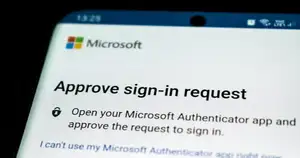
- Authenticator apps
- Hardware security keys (best)
- Built-in security prompts
Avoid SMS codes when possible.
Learn more:
👉 Multi-Factor Authentication
🔐 Step 2: Use Strong, Unique Passwords
Cloud accounts must have unique, complex passwords.
Tips:
- Minimum 14+ characters
- Use a password manager
- Never reuse passwords
- Avoid dictionary words
Guide:
👉 Strong Passwords
🧪 Step 3: Recognize Cloud-Related Phishing
Hackers frequently send fake emails pretending to be:
- Apple
- Microsoft
- Dropbox
Examples:
- “Your storage is full — click to upgrade”
- “Login attempt detected — verify your account”
- “Your files will be deleted soon”
- “New device signed in to your account”
Always check the URL before logging in:
👉 Verify Website Legitimacy
More phishing details here:
👉 Phishing Attacks
🔏 Step 4: Understand Cloud Encryption
Cloud services use two main types of encryption:
✔ In-Transit Encryption
Protects data while it’s being uploaded or downloaded.
✔ At-Rest Encryption
Protects files stored in cloud servers.
However, most cloud providers manage the encryption keys, meaning they can technically access your files.
For sensitive documents, consider zero-knowledge encryption tools (see below).
📂 Step 5: Organize Your Cloud Files Securely
Security improves when files are well-organized.
Best practices:
- Separate personal and work files
- Avoid storing passwords in plain text
- Avoid uploading sensitive images (IDs, passports)
- Use secure folders for confidential files
- Archive old backups
- Delete unused files
Cloud clutter increases risk.
🧱 Step 6: Use Zero-Knowledge Encryption for Sensitive Data
To protect extremely sensitive files, encrypt them before uploading.
Tools include:
- Cryptomator (free)
- VeraCrypt
- 7-Zip encrypted archives
- NordLocker
- Tresorit (built-in end-to-end encryption)
This means only you hold the decryption key.
🛰️ Step 7: Review Third-Party App Access
Google, Apple, Microsoft, and Dropbox allow third-party apps to connect to your account.
Check for apps that can:
- Access your files
- Edit documents
- Read your email
- View your contacts
- Sync data
Remove apps you do not recognize.
🧲 Step 8: Monitor Account Activity
Regularly check:
- Devices logged in
- Recent activity
- Login attempts
- Unknown IPs
- Connected apps
- Security alerts
Unrecognized activity may indicate compromise.
🔌 Step 9: Secure Your Devices
Cloud security is impossible without secure devices.
Ensure:
- System updates ON
- Browser hardened
- Antivirus/malware protection active
- No suspicious apps installed
- No rogue browser extensions
Device protection details:
👉 Malware & System Defense
🧩 Step 10: Protect Your Cloud Backups
Cloud accounts often contain:
- Phone backups
- WhatsApp backups
- Photos
- Calendars
- Documents
- Password recovery data
These backups may include:
- Messages
- Contacts
- Location data
- Call logs
Make sure your backup settings do not overshare.
🛑 Step 11: What to Do If Your Cloud Account Is Compromised
1️⃣ Change your password immediately
Do it from a clean device.
2️⃣ Enable MFA
If not already active.
3️⃣ Log out all devices
Google, Apple, Microsoft, Dropbox allow forced logout.
4️⃣ Check account recovery options
Ensure phone numbers and emails are yours.
5️⃣ Review cloud files
Look for:
- Suspicious uploads
- Deleted files
- Modified documents
- Ransomware notes
6️⃣ Remove unknown apps
Disconnect them immediately.
7️⃣ Scan your device
Attackers often infect devices first.
👉 Malware & System Defense
📚 Summary
Cloud services are incredibly convenient — but they store some of your most sensitive information.
By using strong passwords, MFA, zero-knowledge encryption, secure devices, and cautious sharing practices, you can protect your cloud accounts from hackers, scams, and data leaks.
Continue improving your digital security with: